Tutorial
Make your first SAP B1 bill of materials
In this tutorial we upload a ZIP of SolidWorks drawings and build a bill of materials (BOM) for one sub-assembly. At the end you will have SAP-B1-BOM.xlsx on your computer, made for an order of 75 assemblies.
It takes about 10 minutes. You need a Manifest account and a ZIP of SolidWorks files for one machine. The screenshots use a sample machine, CONVEYOR LINE 3 LABEL APPLICATOR ASSY. Its names, codes and sizes are made up, so your screens will show your own.
If you prefer to watch first, the tutorial video shows the same steps.
-
Sign in
Go to manifest.jetdraftai.com. Enter your email and password, then click Sign in.
You should see the Machine BOMs page. It lists the projects of your team, newest first.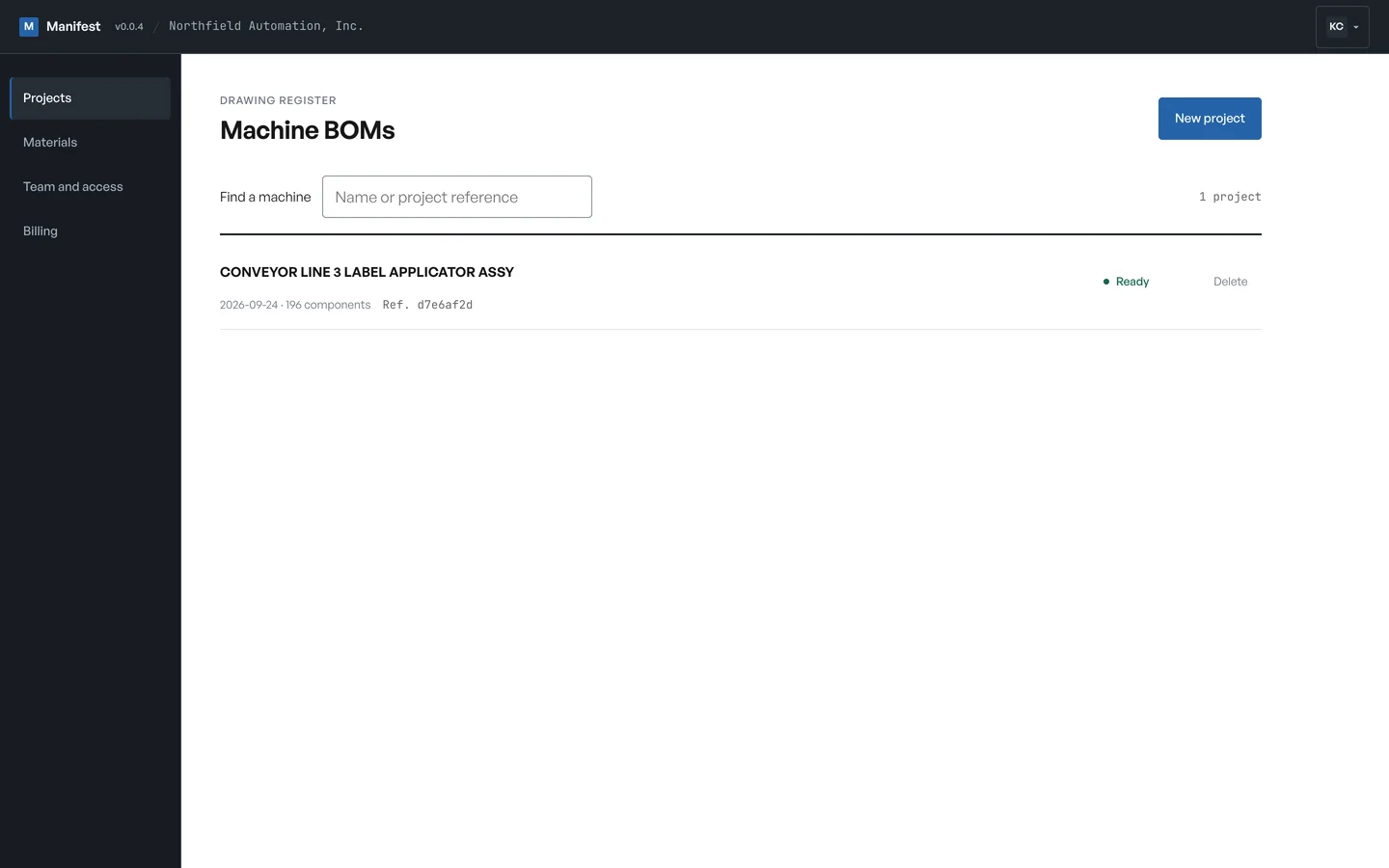
-
Start a new project
Click New project in the top-right corner.
You should see Generate a bill of materials and a box that says Drop your SolidWorks ZIP or RAR here.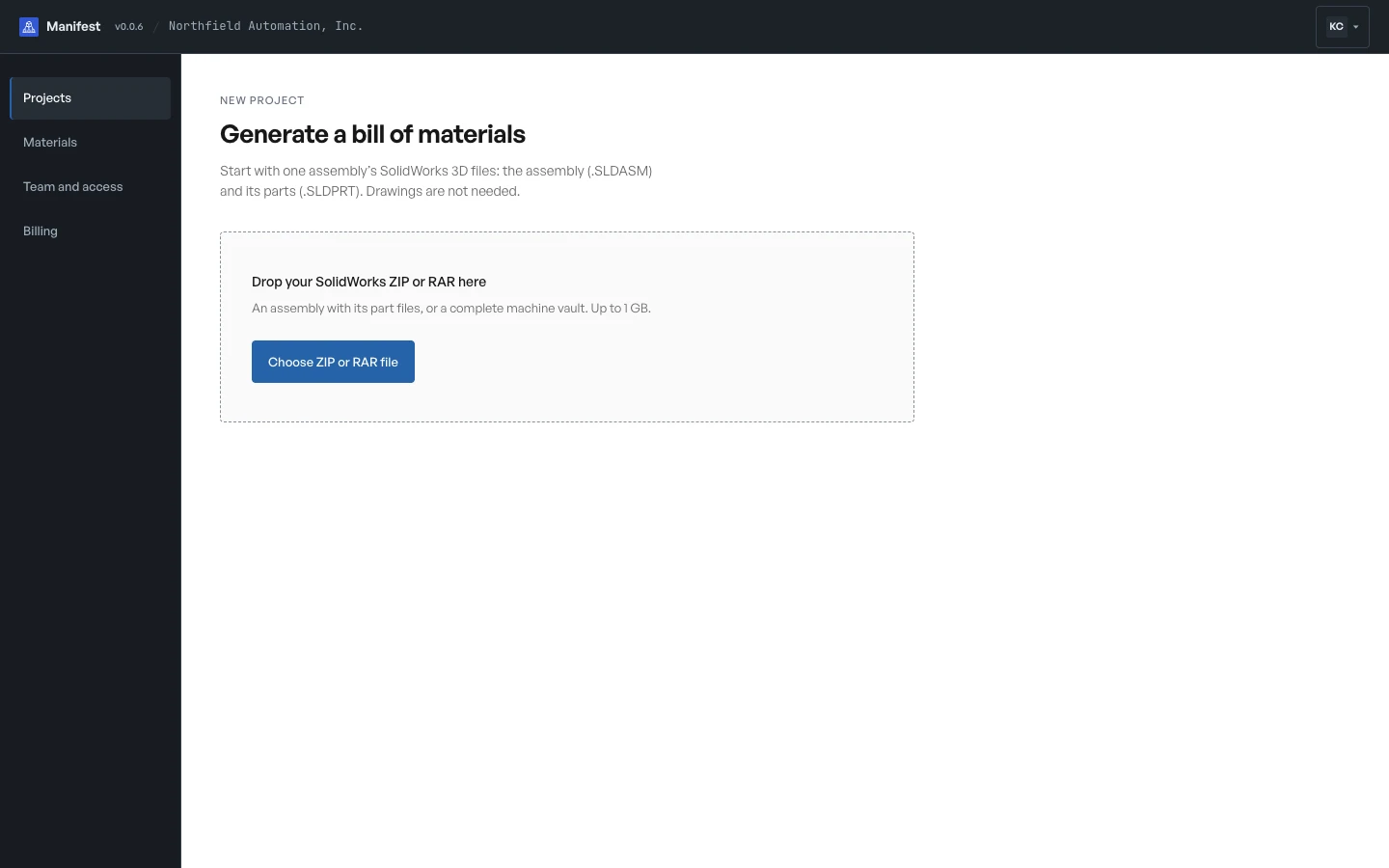
-
Upload the ZIP
Drag your ZIP or RAR onto the box, or click Choose ZIP or RAR file and pick it. It must hold the 3D files: the assembly (.SLDASM) with its parts (.SLDPRT), or a complete machine vault. Drawings are not needed.
You should see Generating BOM with three lines: Unpacking the vault, Detecting the root assembly, and Resolving the BOM graph. For the sample it takes under a minute. Then the Select assemblies screen opens.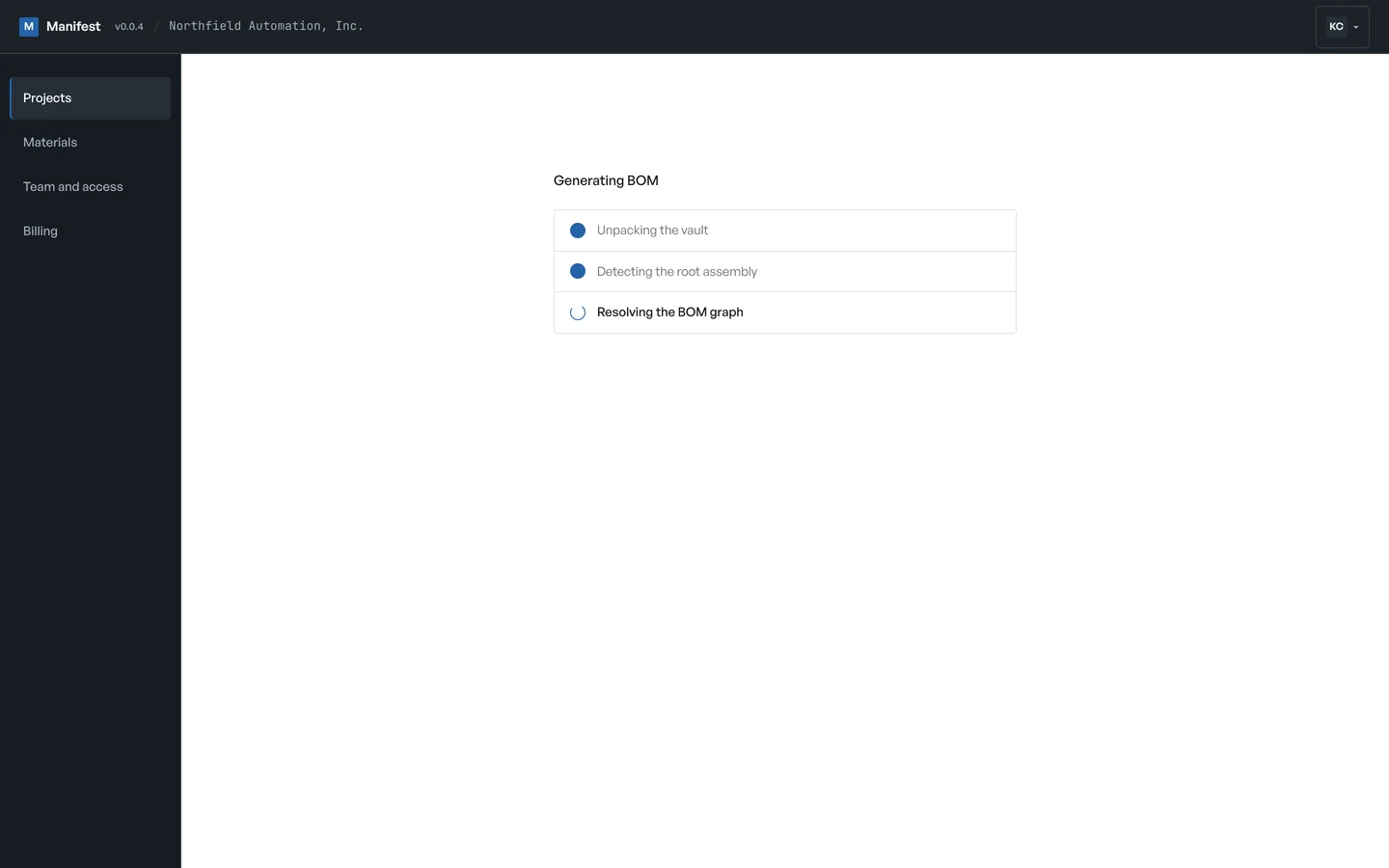
-
Choose one sub-assembly
The Sub-assemblies list shows every sub-assembly Manifest found, with its count of fabricated and purchased parts. Nothing is ticked yet.
Tick S01000 — LABEL HEAD ASSY.
You should see the row highlighted, with 15 fabricated · 29 purchased. The RUN VALIDATION → button turns blue.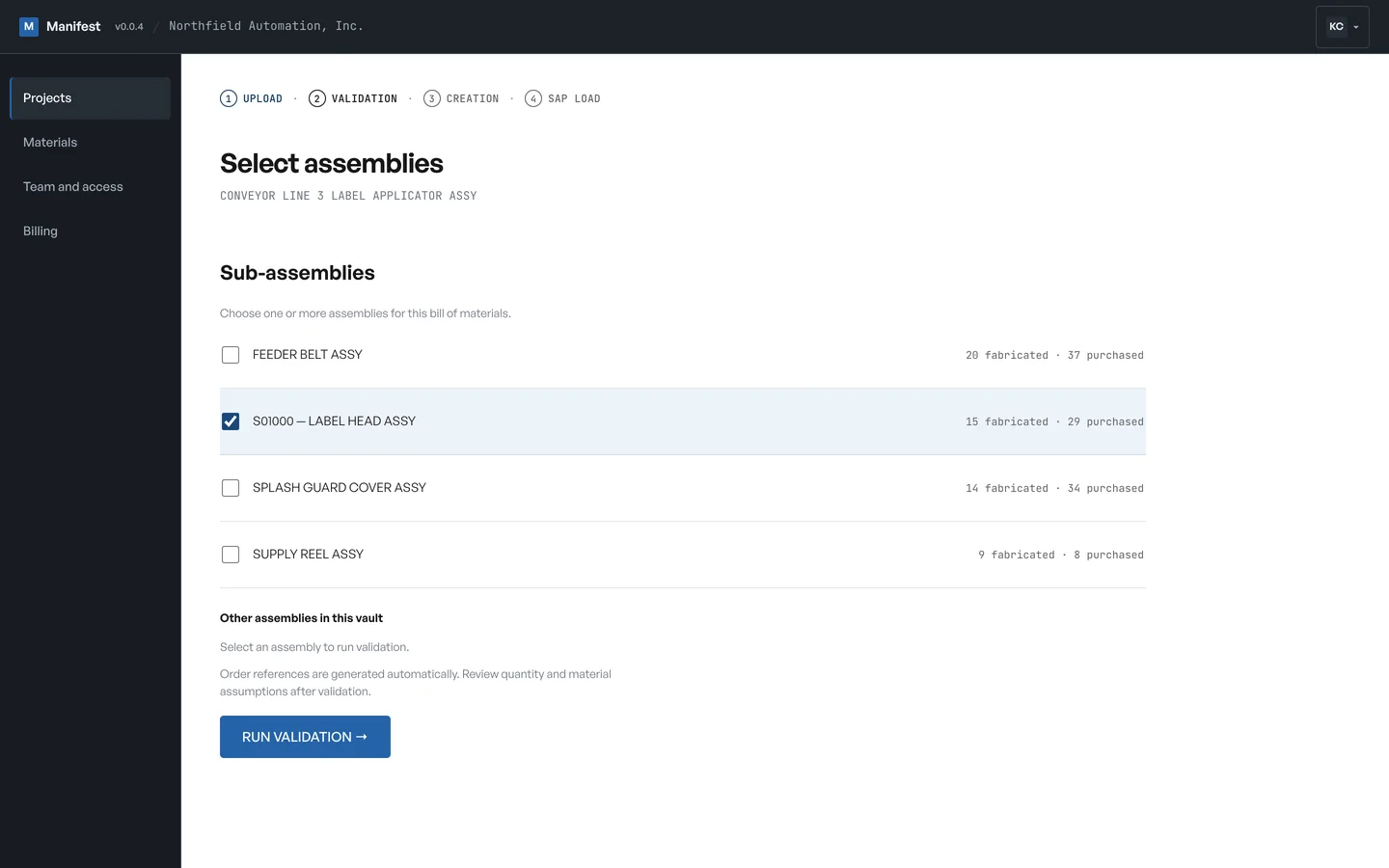
-
Run validation
Click RUN VALIDATION →. Manifest checks each part in the sub-assembly and calculates the BOM.
You should see Running validation for a few seconds. Then the 3 CREATION step opens with 17 items in this run.A dialog also opens: 1 decision needed before this output is trusted. One part, P01046, has no material on any drawing. Manifest leaves it blank instead of guessing. We will not answer it now. Click Later.
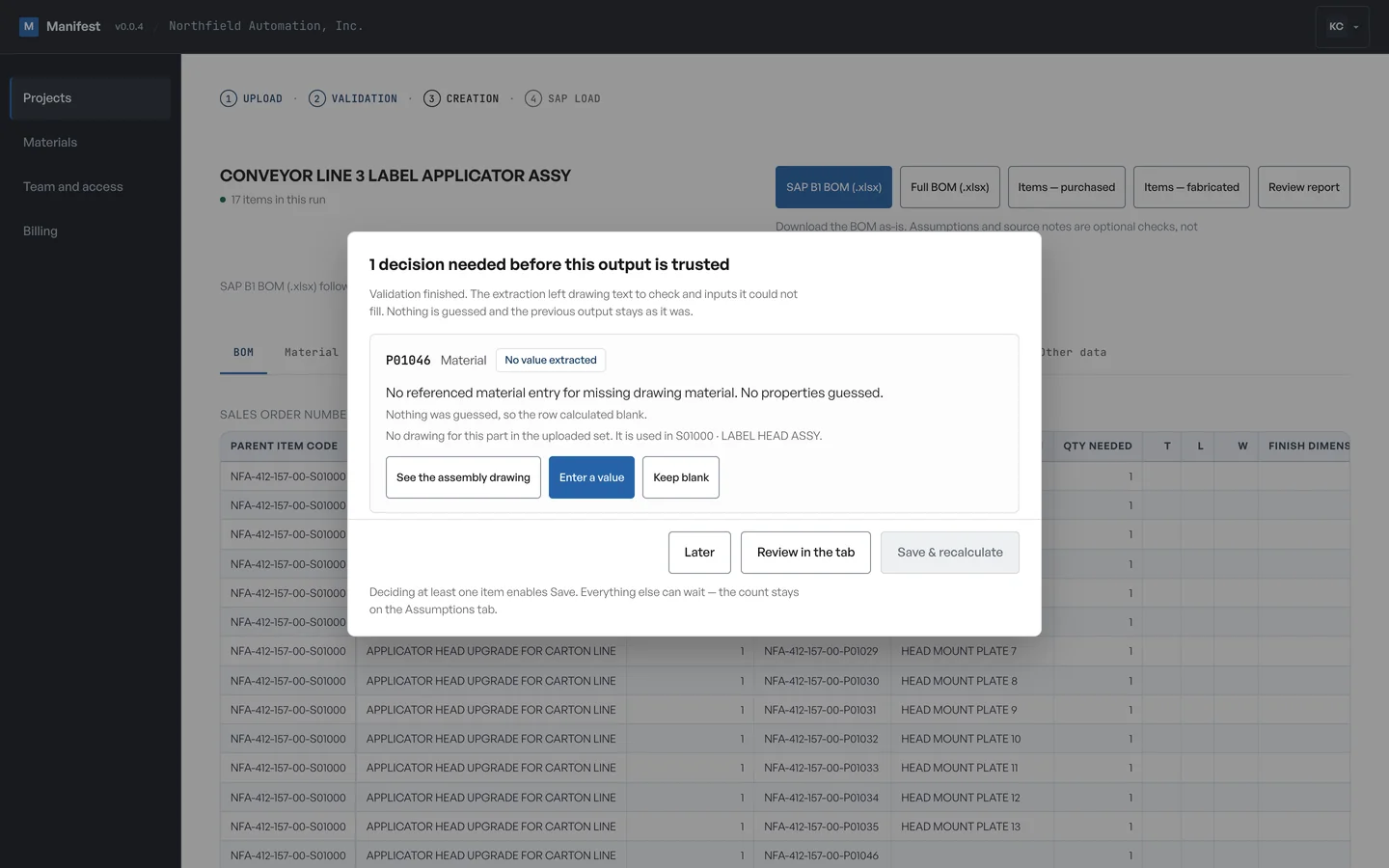
To answer decisions like this one later, see Answer a decision the output needs. -
Look at the BOM
The BOM tab shows the rows exactly as they will appear in the Excel file. Each row names a parent item, the quantity per assembly, and a child item.
You should see SALES ORDER QUANTITY: 1 above the table. The first rows list what S01000 contains: 14 fabricated plates and parts, then the purchased parts. Scroll down: each fabricated part appears again as a parent, with its raw material, stock size (T, L, W), supply type, and weight.One row has no weight: P01046, the part without a material. That is the decision from the dialog.
-
Set the order quantity to 75
A new project starts with a quantity of 1 assembly. Our order is for 75.
- Click the Assumptions tab.
- In Quantity · assemblies, enter 75.
- Click Save & recalculate.
You should see the button change to Recalculating.... The old output stays on screen until the new one is ready, usually within a few seconds.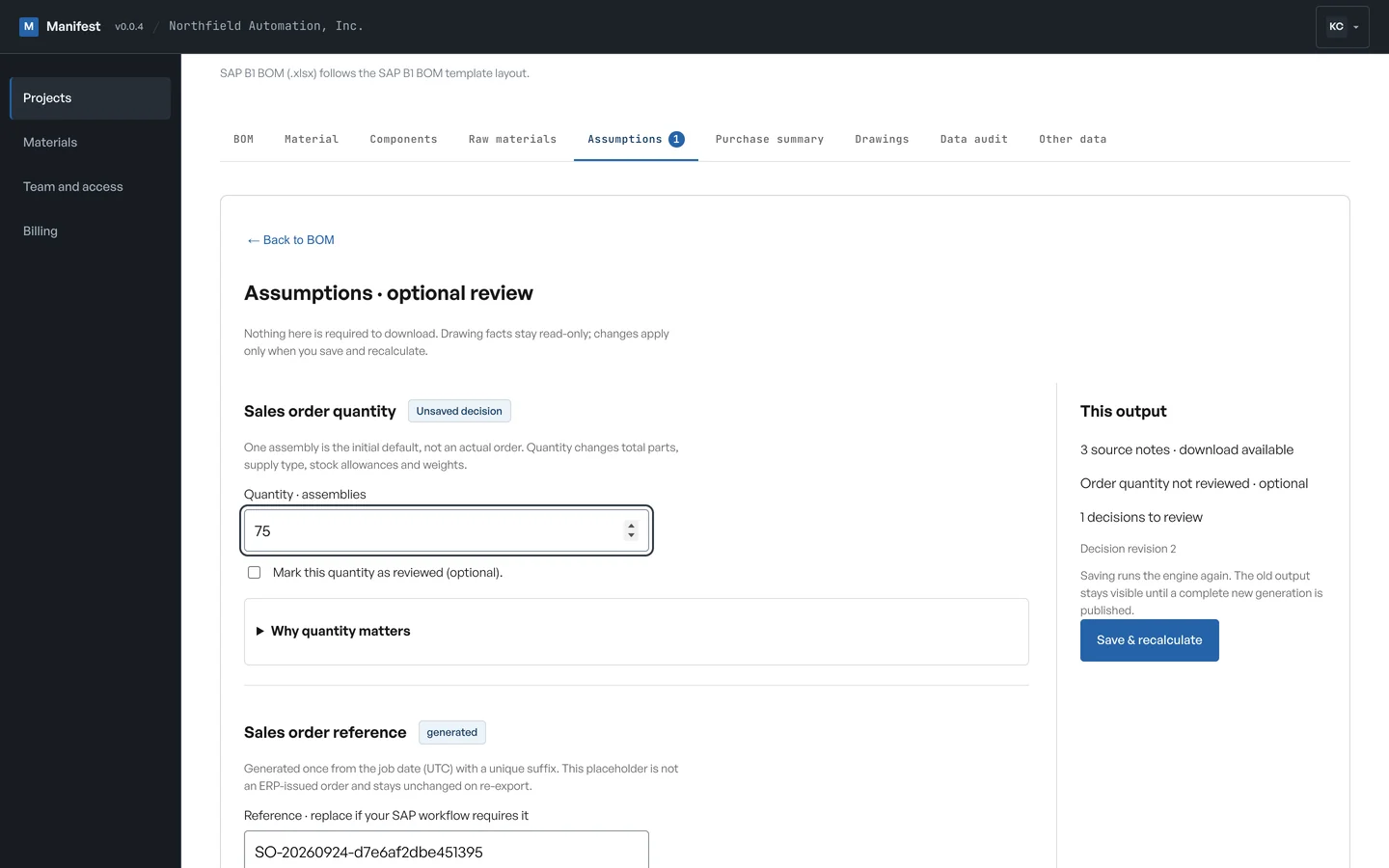
-
Open SAP LOAD
In the step bar at the top, click 4 SAP LOAD.
You should see SALES ORDER QUANTITY: 75. Scroll the table to the right: the TOTAL QUANTITY column now shows 75 for each part.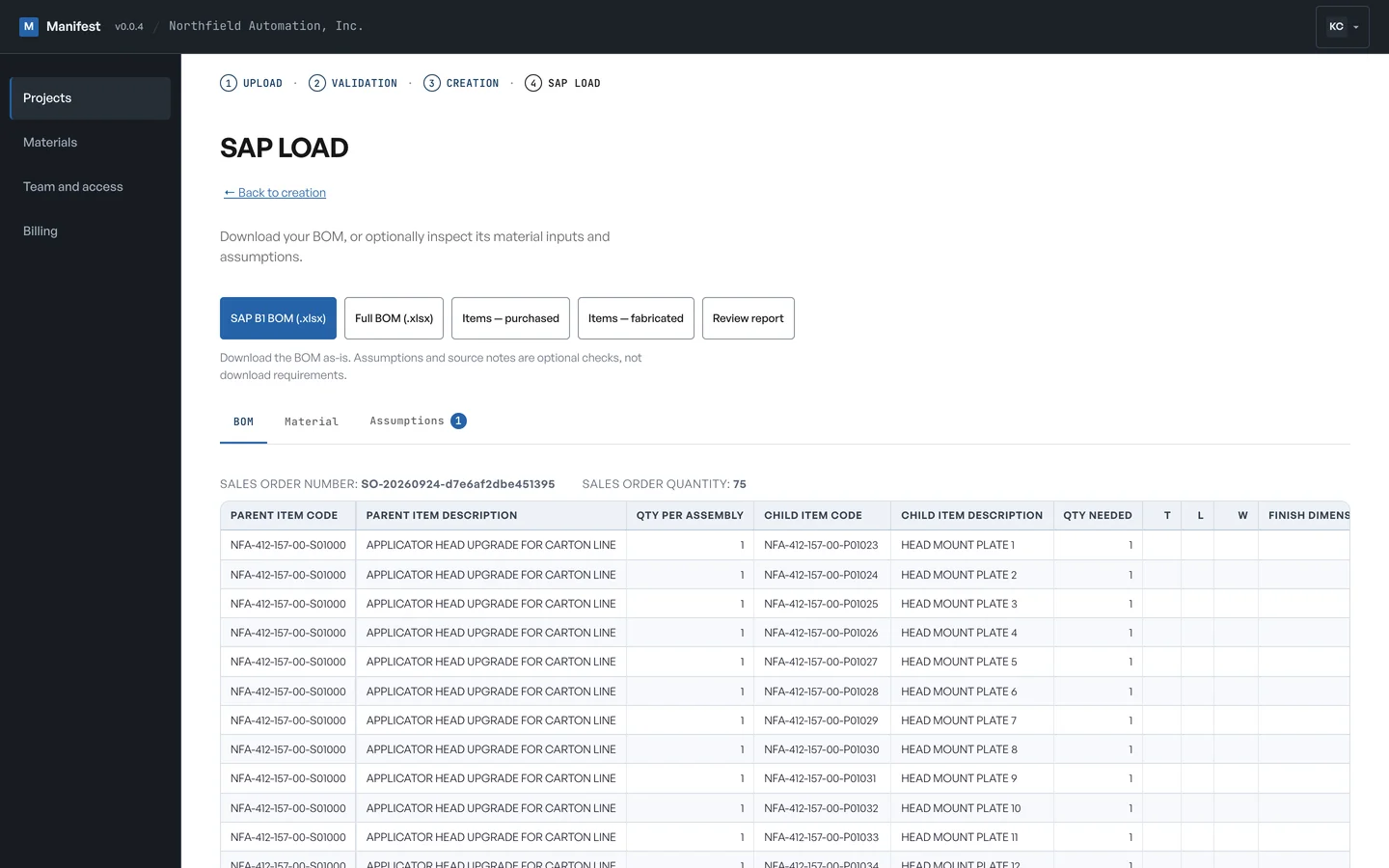
-
Download the SAP B1 BOM
Click SAP B1 BOM (.xlsx).
You should see your browser saveSAP-B1-BOM.xlsx, about 18 KB for the sample. -
Open the file
Open
SAP-B1-BOM.xlsxin Excel.You should see six sheets. The first, BOM, starts with SALES ORDER NUMBER in A1 and SALES ORDER QUANTITY 75 in row 2. The column headers are in row 3. The file holds values only, with no formulas, so SAP B1 can import it.
What you made
You turned a folder of SolidWorks drawings into a SAP B1 bill of materials for 75 assemblies. You did not type a single part code. You also saw how Manifest treats a value it cannot read: the cell stays blank, and a decision waits for you.
Next steps:
- Answer the open decision: Answer a decision the output needs.
- Give the files to your SAP B1 team: Download the files for SAP B1.
- Learn what each sheet and column holds: The SAP B1 workbook.
- Understand why blanks stay blank: Nothing is guessed.