
SolidWorks to SAP Business One
From 2 weeks of re‑keying drawings to an SAP B1 BOM in 2 minutes*, with Manifest reading SolidWorks files directly.
How we estimate this
| Step | Our estimate | Hours |
|---|---|---|
| Open and read 768 SolidWorks files | 2 min each | 25.6 |
| Stock size, allowance and weight of 244 fabricated parts | 6 min each | 24.4 |
| Type 562 lines into the 28-column BOM sheet | 3 min a line | 28.1 |
| Check totals, fix what the import rejects | 25% on top | 19.5 |
| About 12 working days of 8 hours | 97.6 | |
| Step | On our production server | Seconds |
|---|---|---|
| ZIP to parts tree: 768 files, 562 items | median of 4 runs (13–19 s) | 15.5 |
| Validate all 8 top-level units | 1 run | 11.4 |
| Processing, before upload and review | 26.9 | |
The machine is a real 310 MB SolidWorks vault from our design partner. Its file, part and line counts are what Manifest found; the minutes per manual step are our estimate, not a customer measurement. Drawing readings were off for these runs. “2 minutes” adds the clicks through four screens; upload time and review of flagged items come on top. A pilot measures both sides on your own drawings.
Upload one ZIP of the machine’s drawings. Manifest writes the BOM as a values-only workbook for the SAP B1 import, and anything the drawings leave out comes back to your team as a question, not a guess.
Native SolidWorks reading that skips the DXF export maps a 768-file machine in under 20 seconds.
Manifest opens the .SLDASM, .SLDPRT and .SLDDRW files as they sit in the vault and finds every assembly, part and purchased item. Nobody re-saves drawings as DXF or copies title blocks into a spreadsheet.
- Upload limit per ZIP
- 1 GB
- Largest machine tested
- 768 files
- Items in its parts tree
- 562
- ZIP to parts tree
- < 20 s
Measured on our production server (1 CPU): a 310 MB machine with 77 assemblies, 13 to 19 s over 4 runs. Drawing readings were off; with readings on, each drawing sheet adds time.
The workflow takes a 768-file machine to an SAP B1 workbook in 2 minutes, due to Manifest reading and checking every file itself.
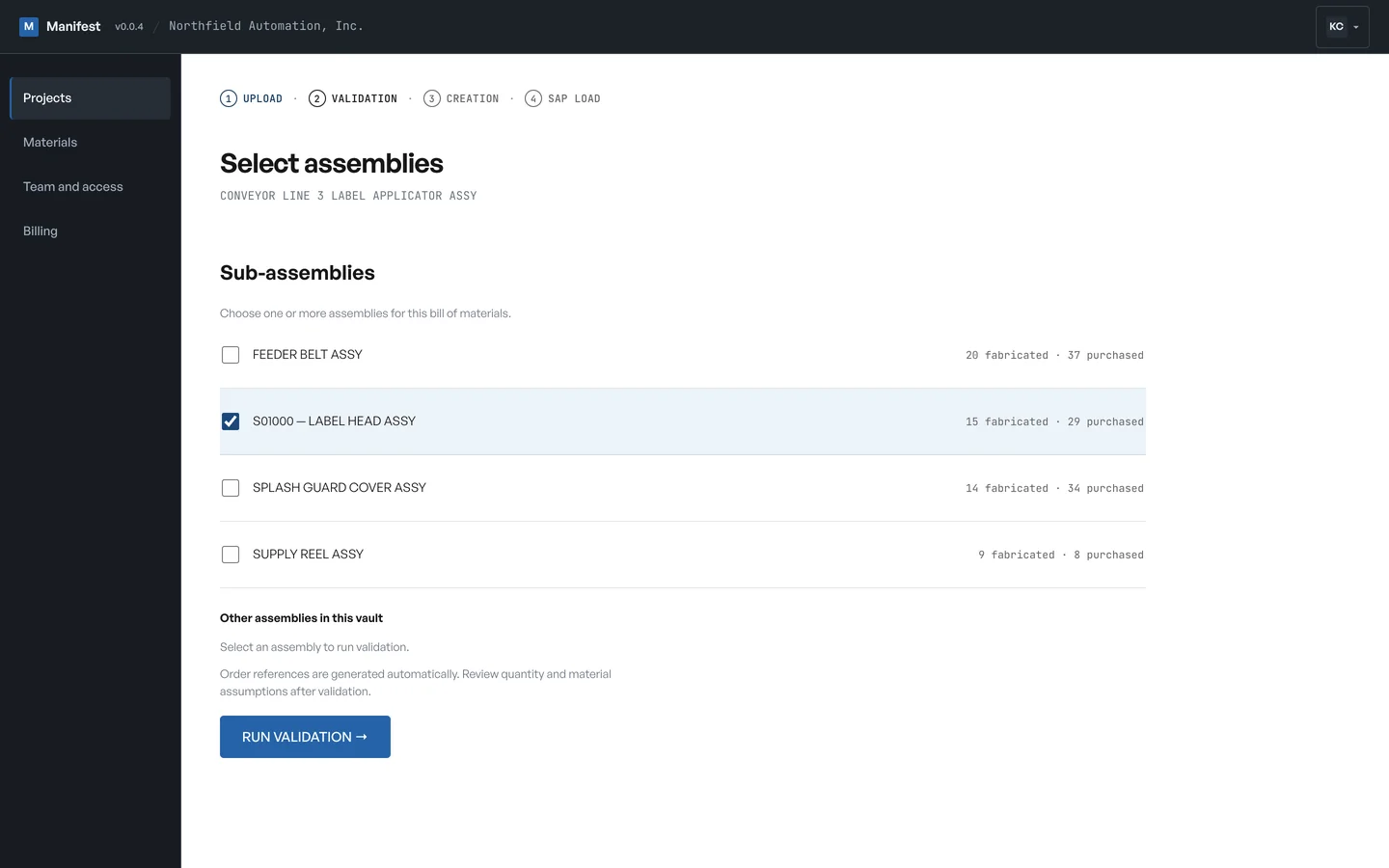
Four screens, and each one shows what it found before the next one starts. Engineers spend their time on the items Manifest flags, not on typing.
-
1 Upload
Drop the ZIP of one machine
Manifest finds the root assembly and resolves every sub-assembly, part and purchased item. A 768-file machine becomes a 562-item parts tree in under 20 s.
-
2 Validation
Tick the sub-assemblies to order
Manifest checks each part against its drawing and the materials library, and flags every part that has no drawing. All 8 units of that machine take 11 s.
-
3 Creation
Review the BOM row by row
Set the sales order quantity once. Total parts, stock sizes, supply type and weights recalculate together, from your own materials library.
-
4 SAP Load
Download the SAP B1 workbook
SAP-B1-BOM.xlsx for the import, plus separate lists of items to buy and items to fabricate.
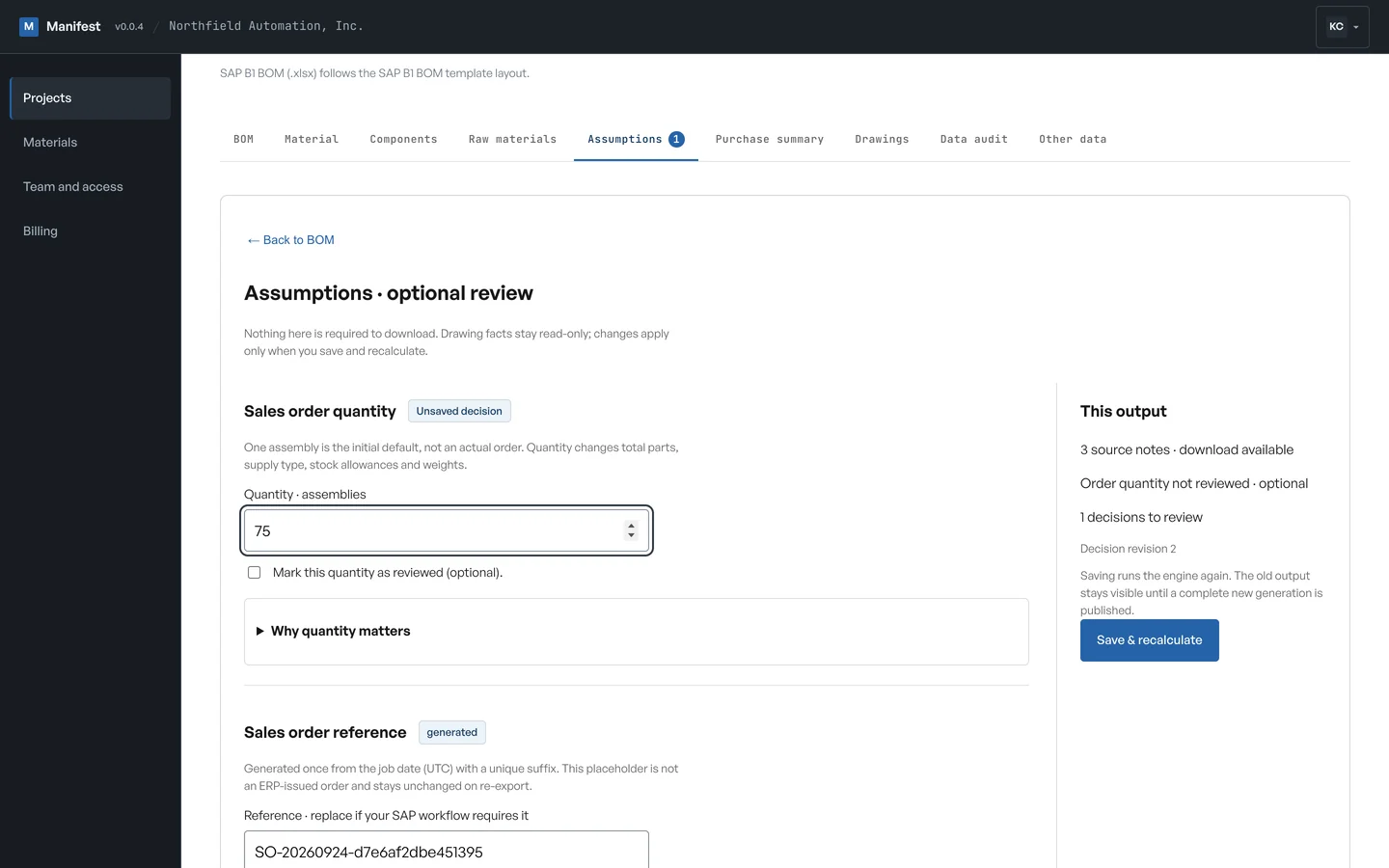
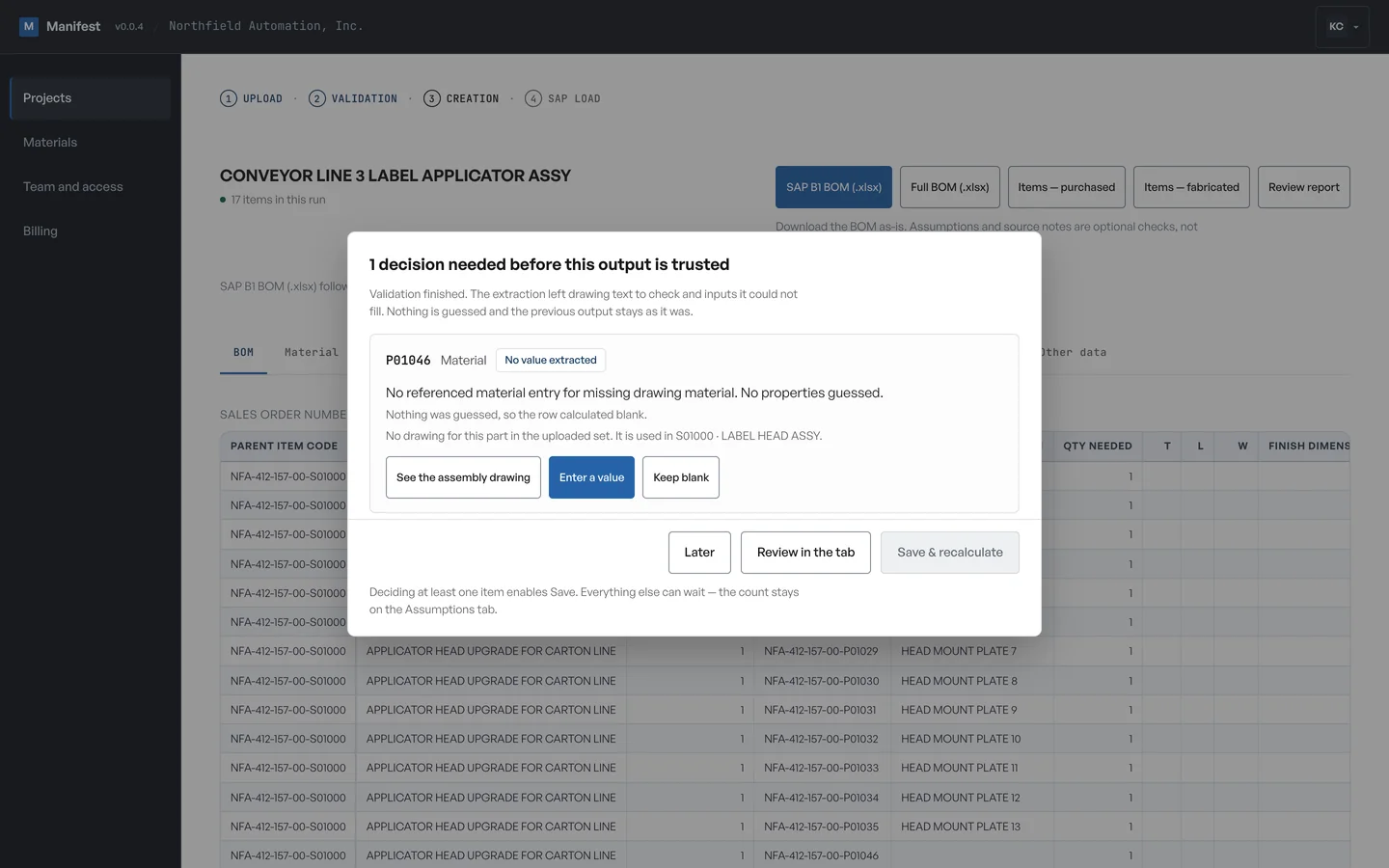
Manifest stops at every missing material, size or quantity, which keeps a guessed value out of SAP B1 purchase orders.
When a drawing gives no material, no size or no quantity, Manifest leaves the cell blank and opens a decision. Your engineer can use the text read from the drawing, enter a value, or keep the cell blank on purpose. Each answer is recorded with the project.
If no drawing names a material for a part, Manifest does not pick a steel for it. It stops and asks.
- Blank stays blank until a person answers
- Each decision links to the drawing sheet it came from
- Answers apply on the next recalculation, not silently
Manifest writes the SAP B1 workbook as plain values in 6 template sheets, which leaves the import no formula to reject.
When a SAP B1 BOM template computes weights and totals with Excel formulas, the import cannot read them. Manifest does the arithmetic and writes the results in the template’s own sheets and columns.
| PARENT ITEM CODE | CHILD ITEM CODE | CHILD ITEM DESCRIPTION | T | L | W | TOTAL QTY | SUPPLY TYPE | TOTAL WEIGHT |
|---|---|---|---|---|---|---|---|---|
| NFA-412-157-00-S01000 | NFA-412-157-00-P01023 | HEAD MOUNT PLATE 1 | 75 | |||||
| NFA-412-157-00-S01000 | NFA-412-157-00-P01024 | HEAD MOUNT PLATE 2 | 75 | |||||
| ⋮ | ||||||||
| NFA-412-157-00-P01023 | SUS303 | STAINLESS STEEL 303 | 18.4 | 63 | 79 | 75 | PRE-MILLED 6F | 64.952 |
| NFA-412-157-00-P01024 | SUS303 | STAINLESS STEEL 303 | 23 | 54 | 66 | 75 | PRE-MILLED 6F | 49.696 |
| NFA-412-157-00-P01032 | SS400 | STRUCTURAL STEEL SS400 | 63 | 95 | 118.8 | 75 | PRE-MILLED 6F | 401.092 |
6 sheets0 formulas0 defined names
Sample machine. Part names and codes are made up; the values are what Manifest wrote.
Team workspaces come with 3 roles and a named account manager, who helps set up your materials library and SAP B1 template.
One workspace per team
Projects, drawings and the materials library are shared inside the team and closed to everyone else. Invite teammates by email.
Member, Admin, Owner
Members build BOMs. Admins also manage materials and invite members. Owners also manage billing.
A named account manager
A person at Jetdraft is assigned to your team. They load your SAP B1 template and material list with you, and answer questions while your team gets started.
Every page and every API call needs a signed-in session, and traffic runs over HTTPS only.
Cutting plans, fit checks and CNC code still start from re-read drawings, which costs a second round of re-keying.
Manifest already holds each part’s material, size and quantity. The roadmap reuses that parts tree for the next shop-floor steps, so nobody reads the drawings twice.
Available now
SAP B1 bill of materials
Native drawings to a values-only SAP B1 BOM workbook.
Parts to buy and to fabricate
Separate item lists for purchasing and for the shop.
In testing with a design partner
More stock types
Rods, profiles, plastics, hose, wire and extrusions next to plate.
Deeper BOMs
Finished goods with several levels of sub-assemblies.
Revised uploads
Compare a changed drawing set with the BOM already loaded.
Planned
Cutting templates
Group parts by material and thickness and lay them out on the plate.
Fit check
Check that mating parts fit, and flag holes that do not line up.
CNC programs
Generate machining code from the same part data.
Only the Available now items are in the product today.
Let’s take the 2 weeks of BOM typing off your engineers: please send one machine’s drawings for a pilot.
Send us three things. We run them through Manifest with you, and your team checks the output row by row against the BOM you built by hand.
- A ZIP of one machine in native SolidWorks files, as it sits in the vault.
- Your SAP B1 BOM template, the workbook your import already uses.
- Your material list, so parts match the raw materials you stock.
Nothing is written to SAP B1. You import the workbook when you are satisfied with it.